Bingo Master


A complete, self-hosted bingo solution that runs entirely in your browser with no Internet connection required.
🎮 Live Demo: Play Bingo Master Online
Note: If you visit https://commputethis.github.io/Bingo_Master/, click the link above to launch the caller.
📸 Screenshots
| Dark Mode | Light Mode |
|---|---|
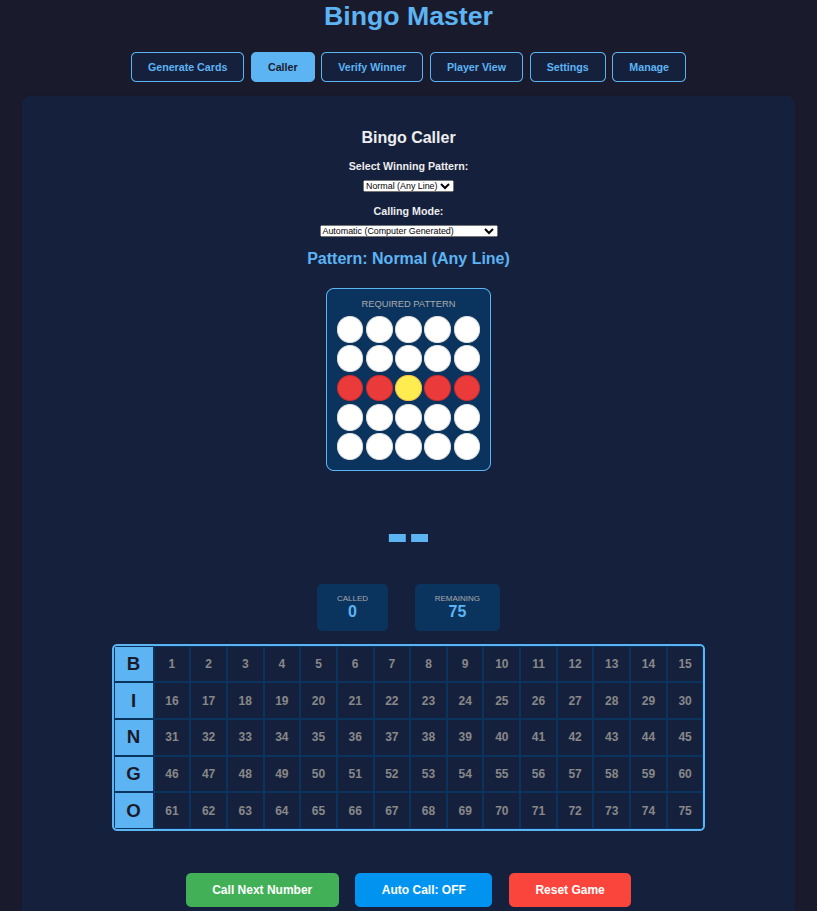 |
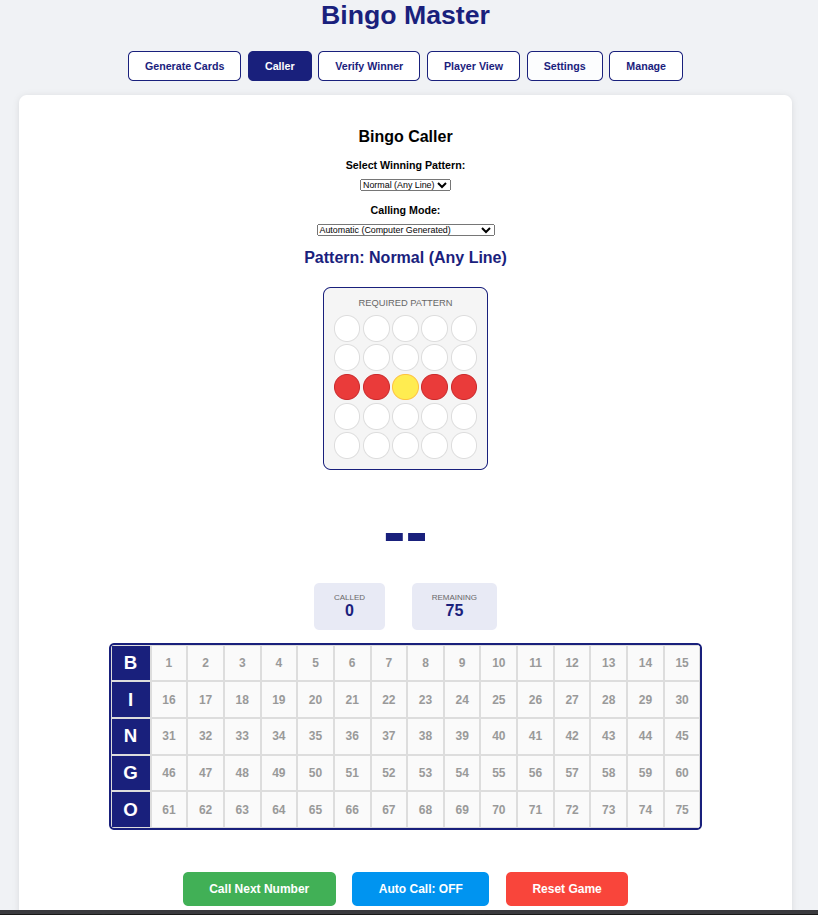 |
| Main caller interface in dark mode | Main caller interface in light mode |
| Card Generator | Player View |
|---|---|
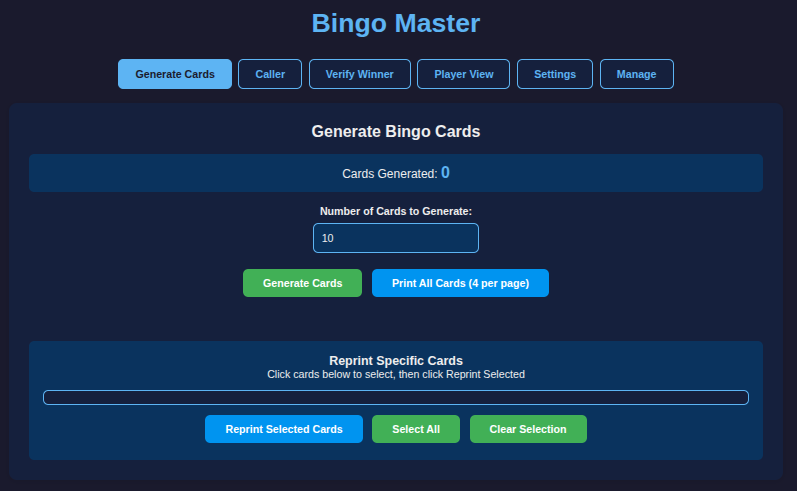 |
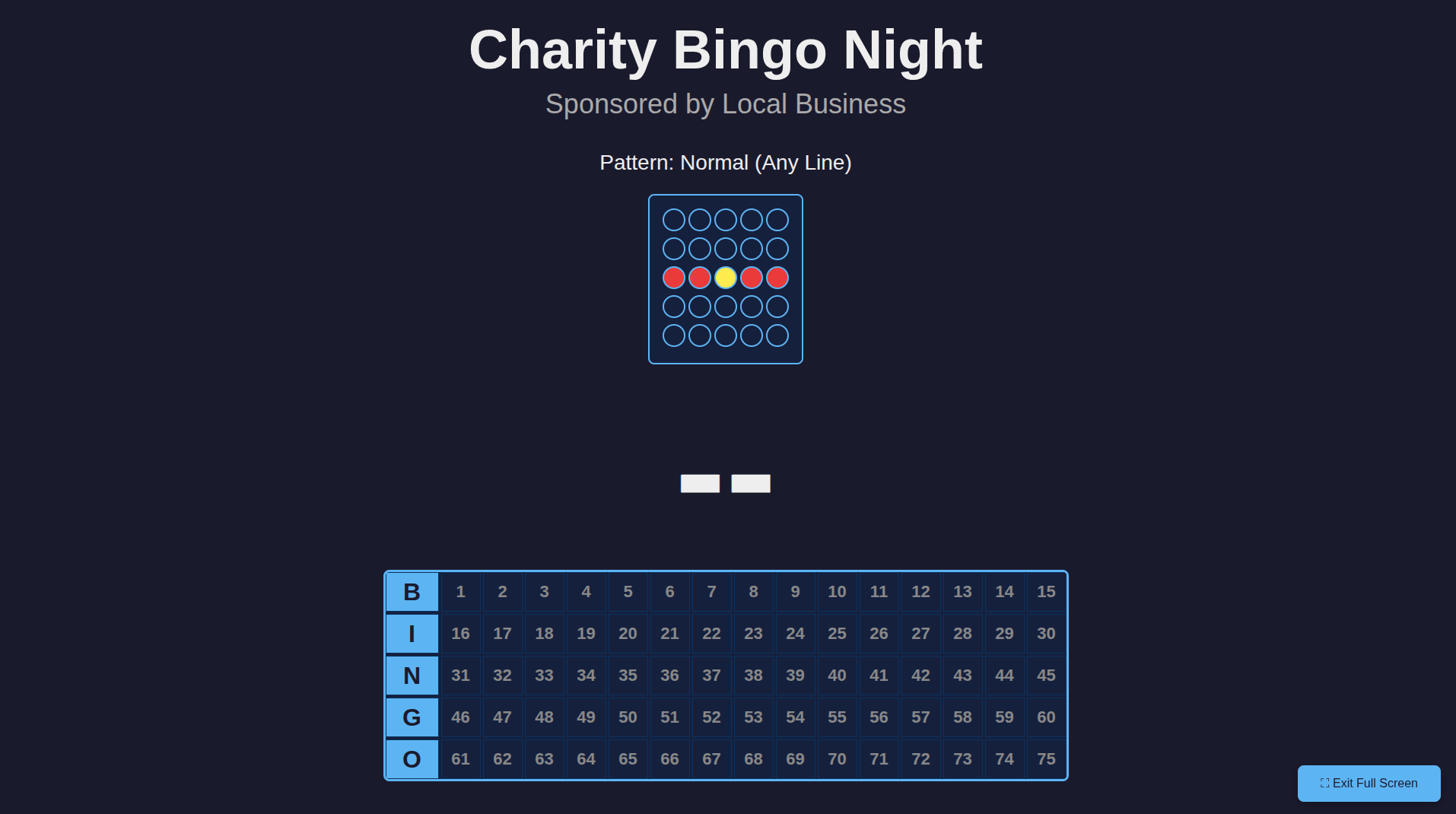 |
| Generate and print bingo cards | Large-format player display |
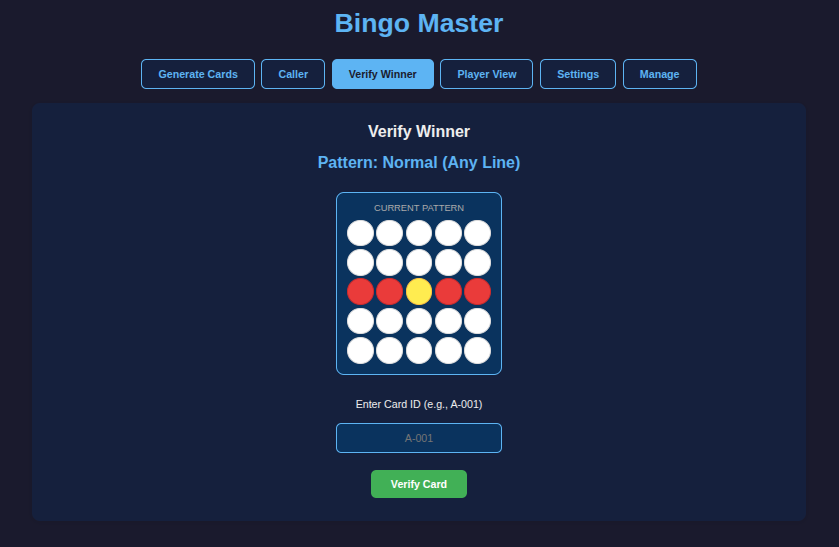
| Winner Verification | Settings |
|---|---|
 |
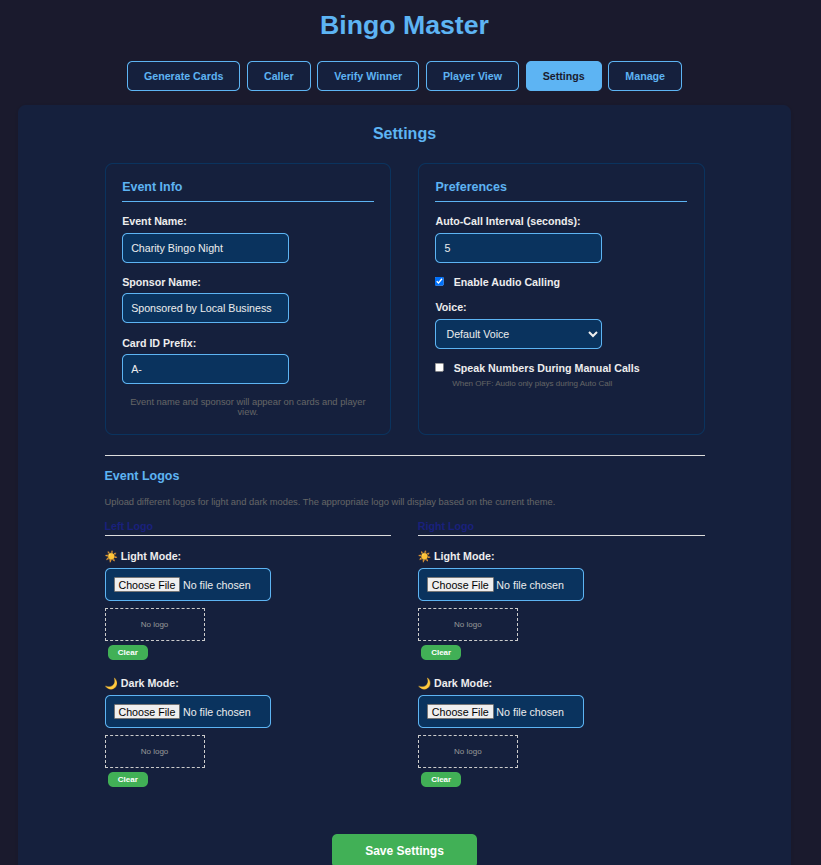 |
| Verify winning cards instantly | Customize your event |
Overview
Bingo Master is a fully-featured bingo management system designed for charity events, community gatherings, and bingo nights. It generates unique bingo cards, calls numbers, verifies winners, and displays game information - all running locally in your web browser.
Quick Start (Online)
Want to try it out right now?
No download needed! The online version works exactly like the downloadable version. Your data is still stored locally in your browser.
Features
Card Management
- Generate unique bingo cards with customizable ID prefixes
- Print 4 cards per page on standard 8.5” x 11” paper
- Reprint specific cards as needed
- Track card inventory with generated count display
- Export/Import - Transfer cards and settings between computers
Game Play Modes
- Automatic Mode: Computer generates random numbers
- Manual Mode: Click numbers on the board to call them (for use with physical bingo equipment)
- Auto Call: Configurable interval for automatic calling
- Undo: Remove last called number if entered by mistake
Audio Calling
- Text-to-speech announces numbers aloud
- Smart audio: Only plays during Auto Call (configurable to speak during manual calls)
- Voice selection: Choose from available system voices
- Clear pronunciation: “B… 12” or “N… 34”
Winner Verification
- 12 winning patterns: Normal, 4 Corners, Outside Edge, Cover All, Inner Frame, Windmill, X, Plus, Checkerboard, Smiley Face, Martini Glass, Bow Tie
- Visual pattern display showing required spaces
- Instant card verification by ID
- Fraud prevention with unique card tracking
Display Options
- Dark mode (default) and light mode
- Player view with current number and called history
- Separate player window for projection/display
- Fullscreen support with toggle button
- Customizable event name and sponsor on cards and displays
- Optional logos for event branding (left and right of header)
- See Logo Specifications below
Data Management
- Export/Import - Backup or transfer to another machine via JSON file
- Local storage - All data saved in your browser
- No Internet required after initial load (downloadable version)
System Requirements
- Modern web browser (Chrome, Firefox, Edge, Safari)
- Computer with 4GB+ RAM recommended for large card sets
- Printer (for printing bingo cards)
- Optional: Projector or large screen for player view
- Optional: Speakers for audio calling
Logo Specifications
Display Sizes
| Location | Max Width | Max Height | Notes |
|---|---|---|---|
| Bingo Cards | 120px per logo | 60px | Positioned left/right above card grid |
| Player View Window | 200px per logo | 80px | Larger display for projection |
| Settings Preview | 150px | 100px | Thumbnail preview in settings panel |
Recommended Upload Specs
- Format: PNG (with transparency recommended) or JPG
- Recommended Size: 200-400px width, proportional height
- Aspect Ratio: Wide/horizontal orientation works best
- File Size: Under 500KB per logo (stored in browser localStorage)
- Style: Simple, high-contrast logos work best for both dark and light modes
Important Notes
- Logos are automatically scaled to fit while maintaining aspect ratio (object-fit: contain)
- Upload separate versions for Light Mode and Dark Mode for best visibility
- Logos are stored locally in your browser (base64 encoded) - they are not uploaded to any server
- Maximum recommended total storage: ~5MB for all logos combined (browser localStorage limit)
Suggested Logo Dimensions
For best results across all displays, upload logos approximately:
- Width: 200-400 pixels
- Height: 100-200 pixels
- Transparent background: Recommended for seamless integration
This gives you flexibility while ensuring the logos look crisp when scaled down on cards and up in the player view.
Installation Options
Option 1: Use Online (Easiest)
Simply visit: https://commputethis.github.io/Bingo_Master/bingo.html
Your data is stored in your browser’s local storage just like the downloaded version.
Option 2: Download for Offline Use
- Download
bingo.htmlfrom the repository - Double-click the file to open in your web browser
- No installation required - works completely offline!
Quick Start Guide
Before Your Event
- Open Bingo Master:
- Online: Visit https://commputethis.github.io/Bingo_Master/bingo.html
- Offline: Double-click
bingo.html
- Configure Settings (Settings tab):
- Enter your Event Name
- Enter Sponsor Name (appears on cards)
- Set Card ID Prefix (e.g., “A-“, “GAME-“)
- Upload logos (optional - left and right sides)
- Adjust Auto-Call Interval if needed
- Configure Audio settings
- Choose Dark Mode or Light Mode
- Generate Cards (Generate Cards tab):
- Enter number of cards needed
- Click Generate Cards
- Click Print All Cards (4 per page)
- Distribute printed cards to players
- Export Backup (Manage tab - recommended):
- Click Export All Data
- Save the
.jsonfile as backup
During Your Event
Automatic Mode (Computer Calls Numbers)
- Open Caller (Caller tab):
- Select Calling Mode: Automatic
- Select Winning Pattern from dropdown
- Click Call Next Number or enable Auto Call
- Display for Players (Player View Window):
- Opend in a New Window
- Drag window to projector/second screen
- Click Full Screen button if desired
Manual Mode (Using Physical Bingo Caller)
- Open Caller (Caller tab):
- Select Calling Mode: Manual
- Select Winning Pattern
- Call Numbers:
- When physical caller announces a number, click it on the board
- Or use Auto Call with audio if desired
- Undo if needed:
- Click Undo Last Call if wrong number entered
- Display for Players (same as automatic mode)
Verify Winners
- Go to Verify Winner tab
- Enter Card ID when player calls bingo
- Click Verify Card
- System confirms if pattern is complete
After Your Event
- Export Data (Manage tab) to save for next time
- Clear All Data when ready to start fresh
Calling Modes Explained
Automatic Mode
- Computer generates random numbers
- Use “Call Next Number” button or Auto Call
- Audio speaks numbers (if enabled)
Manual Mode
- Click numbers directly on the board
- Use with physical bingo cage/caller
- Audio only speaks if “Speak Manual Calls” setting is ON
- Undo button available for mistakes
Audio Settings
| Setting | Description |
|---|---|
| Enable Audio Calling | Master on/off switch for all audio |
| Voice | Select system voice to use |
| Speak Manual Calls | When OFF: Audio only during Auto Call. When ON: Audio for all calls |
Default: Audio ON, Speak Manual Calls OFF (audio only during auto-call)
Transferring to Another Computer
Export (Source Computer)
- Go to Manage tab
- Click Export All Data
- Save the
.jsonfile
Import (Destination Computer)
- Copy the
.jsonfile to the new computer - Open Bingo Master (online or offline version)
- Go to Manage tab
- Click Import Data and select the
.jsonfile - Confirm to replace current data
Printing Tips
- Use Portrait orientation (cards print 2x2 = 4 per page)
- Card stock recommended for durability
- Color printing optional - works in grayscale
- Each card shows: Event Name, Sponsor, Card ID, and bingo grid
- Standard 8.5” x 11” paper
Winning Patterns
| Pattern | Description |
|---|---|
| Normal | Any horizontal, vertical, or diagonal line |
| 4 Corners | All four corner spaces |
| Outside Edge | Perimeter of the card |
| Cover All | Every space marked |
| Inner Frame | 3x3 center square |
| Windmill | Windmill shape pattern |
| X | Both diagonals |
| Plus | Center row and column |
| Checkerboard | Alternating pattern |
| Smiley Face | Eyes and smile pattern |
| Martini Glass | Classic martini shape |
| Bow Tie | Hourglass bow tie shape |
Data Storage
All data is stored locally in your browser using LocalStorage:
- Generated cards
- Game history (called numbers)
- Settings (event name, sponsor, audio preferences, etc.)
- Logos (if uploaded)
- Dark/light mode preference
Important: Clearing browser data will delete all cards and history. Use Export to create backups! Note for Private/Incognito Mode: Data may not persist between sessions in private browsing mode.
Troubleshooting
Cards not printing correctly?
- Ensure print margins are set to “Minimum” or “None”
- Disable “Print headers and footers” in browser print settings
- Try Chrome or Edge for best print compatibility
Player view not updating?
- Check that LocalStorage is enabled in browser
- Refresh the player view window
- Ensure both windows are from the same browser instance
Lost all my cards?
- Check if you exported a backup (Manage tab)
- Data may have been cleared by browser cleanup
- Regular exports recommended
Fullscreen not working?
- Some browsers require user interaction before allowing fullscreen
- Try clicking the board first, then the fullscreen button
Audio not working?
- Check that browser allows audio playback
- Verify “Enable Audio Calling” is checked in Settings
- Try selecting a different voice
Browser Compatibility
| Browser | Support Level |
|---|---|
| Chrome | ✅ Full support |
| Firefox | ✅ Full support |
| Edge | ✅ Full support |
| Safari | ✅ Full support |
| Internet Explorer | ❌ Not supported |
Keyboard Shortcuts
- ESC: Exit fullscreen
Source Code
View the source code or contribute on GitHub:
https://github.com/commputethis/Bingo_Master
License
MIT License — See LICENSE for details.
Copyright (c) 2026 David Prows
Happy Bingo Calling!